| Breakout | Teams |
|---|---|
| 1 | Inspector Clouseau (T) + Gridion Regression (R) |
| 2 | Nightshift Analysts (T) + Kitchen Nightmares (R) |
| 3 | The Mean, Green, Data-Analyzing Team (T) + Urban Health Insight Group (R) |
| 4 | Cycle Paths (T) + Standard Deviants (R) |
| 5 | Point of Interest (T) + Green Apple (R) |
| 6 | Weight Watchers (T) + Irish Mafia (R) |
| 7 | Sounds Good (T) + House Busters (R) |
| 8 | Stats & The City (R) |
| 9 | Wellness Warriors (R) |
Software Tools for Data Analysis
STA 9750
Michael Weylandt
Week 9
STA 9750 Week 9
Today:
- Tuesday Section: 2025-11-04
- Thursday Section: 2025-10-30
Lecture #08:Data Import and File System Usage; APIs
- Communicating Results (
quarto) ✅ -
RBasics ✅ - Data Manipulation in
R✅ - Data Visualization in
R✅ - Getting Data into
R⬅️- Files and APIs ⬅️
- Web Scraping
- Cleaning and Processing Text
- Statistical Modeling in
R
Today
Today
- Course Administration
- Warm-Up Exercise
- New Material
- Files and the File System
- HTTP and Web Access
- API Usage
- Wrap-Up
- Life Tip of the Day
Course Administration
GTA
Charles Ramirez is our GTA
- Wednesday Office Hours moved to 5:15-7:15 for greater access
- Give a bit of flexibility on the front end for CR to get off work
- Working on Meta-Review #01
- I won’t assign peer-feedback #02 until these grades are returned
Mini-Project #03
MP#03 - Visualizing and Maintaining the Green Canopy of NYC
Due 2025-11-14 at 11:59pm ET
Topics covered:
- Data Import
- One static file (⬅️ Today)
- One API call (⬅️ Today)
- Spatial Data
- Very basic spatial joins
- Spatial visualizations (maps!)
Grading in Progress
We owe you:
- MP#01 Meta-Review Grades
- (Selected) MP#01 Regrades
Course Support
- Synchronous
- MW Office Hours 2x / week: Tuesdays + Thursdays 5pm
- Rest of Semester except Thanksgiving (Nov 27th)
- GTA Office Hours: Wednesdays at 6pm
- MW Office Hours 2x / week: Tuesdays + Thursdays 5pm
- Asynchronous: Piazza (\(<20\) minute average response time)
Future Mini-Projects
- MP#04:
- Deadline: 2025-12-05 at 11:59pm ET
- Topic: BLS Monthly Employment Reports
Posted 2025-11-01
Course Project
Course Project should be your main focus for rest of course
- But you still need to do mini-projects and pre-assignments(!)
Mid-Semester Check-Ins
Week #10 - Mid-Semester Check-In Presentations:
- Overarching Question
- Data Sources
- Quality
- Suitability
- Specific Questions
- Prior Art
- Challenges
Data Sources
When using ‘found’ data, two important questions to ask:
-
Quality: Does the data do what it claims to?
- Exhaustiveness, sampling error, sampling bias, missingness
-
Suitability: Does the data do what you need it to?
- Right ‘unit of analysis’, construct alignment
Prior Art
Context and Novelty:
- What else have people said on your topic?
- What is missing?
- What do you have to add to this conversation? (Novelty)
- New data set, new way of measuring, new style of analysis
A research project is not just summarization of other work: how can you contribute something new?
Project Advice
General Advice:
- Work on as small a scale as possible
- Leave room to demonstrate your coding skill: if you can’t
demonstrate the skills of this class, your SQ may be too small - Plan how to integrate your findings: if you find 5 factors are all correlated with response, how can you identify which ones are most important?
Project Advice
I’ll try to write up some informal advice on:
- Estimating causal effects
- Identifying key factors
Review Exercise
Flat / Plain Text Files
‘Plain text’ files:
- Simple human readable and human writeable file formats
- Not specific to one piece of software
- Examples: CSV, txt, TSV
- Anti-Examples: docx, pdf, jpg
Read into R with readr functions (e.g., read_csv)
Best Halloween Candy
From FiveThirtyEight
Best Halloween Candy
Data can be found at https://raw.githubusercontent.com/fivethirtyeight/data/refs/heads/master/candy-power-ranking/candy-data.csv
Read into R (readr::read_csv) and make 3 plots:
- Do people prefer more sugary candies? (Think OLS)
- Do people prefer more expensive candies? (Think OLS)
- Do people prefer chocolate candies? (Think ANOVA)
Breakout Rooms
Files and the File System
Files and the File System
The file system is the way your computer organizes and provides access to files:
- Tree like-structure:
- Files in folders in folders in folders …
- Separated by
/ -
e.g.
STA9750-2025-FALL/data/mp01/data_file.csv
- Separated by
- End point (or starting point) is the root:
- Called
/on Mac/Linux - Drive name on Windows (
C:/)
- Called
- Files in folders in folders in folders …
Home Directory
Typically, all user files are stored in a “home directory”:
-
/Users/YOURNAMEon Mac/Linux -
C:/Users/YOURNAMEon Windows - Subfolders include
Downloads,Desktop,Documents, etc - Commonly abbreviated as
~- My desktop is
~/Desktop - My course material is in
~/STA9750-2025-FALL
- My desktop is
Paths
Two ways to specify a file:
- Absolute path:
- Starts from root and gives “full name”
/Users/michaelweylandt/STA9750/docs/index.html- GPS coordinates
- Relative path:
- Starts from working directory (
getwd()) and gives directions - If I am in
STA9750, path is justdocs/index.html -
./means “this directory”: could also write./docs/index.html -
../means “up one level”- If I were in
STA9750/docs, source at../index.qmd
- If I were in
- Driving directions
- Starts from working directory (
Using the File System in R
Use the fs package to interact with the file system:
-
dir_ls(),dir_create(),dir_exists(),dir_delete() -
path(),path_home(),path_abs(),path_rel() -
file_create(),file_exists(),file_delete(),file_info()
Activity #01
Return to breakout rooms to practice file system usage:
- Convert relative paths to absolute paths
- List files in a directory
- Examine metadata the largest file(s) in your
STA9750-2025-FALLdirectory
Accessing Data from the Web: URLs, HTTP, JSON
URLs
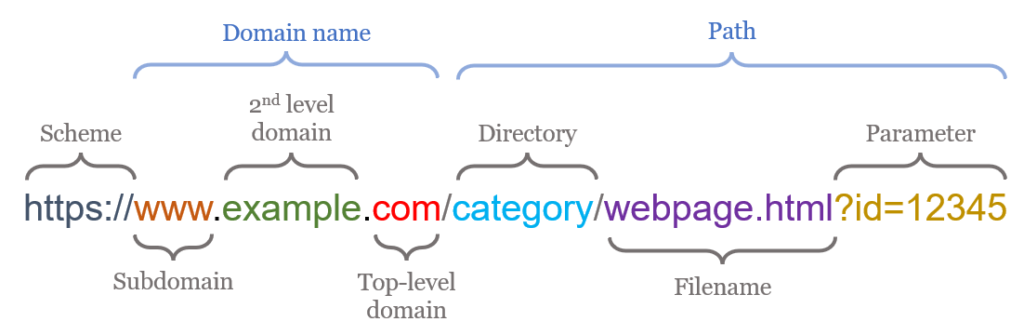
URLs are an extension of file paths for the internet:
- Protocol / Scheme: How data should be transferred
- HTTP(S), SMS (Texting), POP3/IMAP (Email)
- Domain: Name of the other computer
- In practice, often a ‘placeholder’ for something more complex
- Path: Files on the other computer
- In practice, hide functionalty behind file-like paths
URLs
From abstrax.io
Static Data Transfer
R’s basic download.file can be used for downloading simple files:
function (url, destfile, method, quiet = FALSE, mode = "w", cacheOK = TRUE,
    extra = getOption("download.file.extra"), headers = NULL,
    ...)
NULL
Basic file download capabilities:
-
url: source -
destfile: where on your computer to store it
Customizable behavior, but defaults often work well:
-
method: what software to use in the background to download -
mode: is this a text or binary file -
cacheOK: are you ok with a cached version of the file -
headers: do you need to send any additional info in your request
download.file()
Note use of relative path here, so saves in current working directory
Be polite:
- Try to avoid unnecessarily downloading files
- Save file and only download if
!file_exists(destfile)
Data Transfer - download.file()
JSON
JSON:
- Short for
JavaScript Object Notation - Popular plain-text representation for hierarchical data.
- Closer to Python objects (
dicts ofdicts ofdicts) thanRdata.frames - Widely used for web-based data transfer
JSON
Example:
{
    "data": {
        "id": 27992,
        "title": "A Sunday on La Grande Jatte — 1884",
        "image_id": "1adf2696-8489-499b-cad2-821d7fde4b33"
    },
    "config": {
        "iiif_url": "https://www.artic.edu/iiif/2",
    }
}
JSON
Read JSON in R with jsonlite package (alternatives exist)
[1] "Mario" "Peach" NA "Bowser"JSON
    Name Age Occupation
1  Mario  32    Plumber
2  Peach  21   Princess
3   <NA>  NA       <NA>
4 Bowser  NA      Koopa
JSON - A Web Standard
$type
[1] "general"

$setup
[1] "Why did Sweden start painting barcodes on the sides of their battleships?"

$punchline
[1] "So they could Scandinavian."

$id
[1] 313
Compare to browser access
Data Transfer: HTTP
HTTP
- HyperText Transfer Protocol
- Most common (but not only) internet protocol
- Also
ftp,smtp,ssh, …
“Low-level” mechanism of internet transfer
- Many
Rpackages add a friendly UX -
httr2for low-level work (today)
HTTP
HTTP has two stages:
- Request
- URL (Host + Path)
- Method (VERB)
- Headers
- Content
- Cookies
- Response
- Status Code
- Headers
- Content
Modern (easy) APIs put most of the behavior in the URL
HTTP in the Browser
In Firefox: Right-Click + Inspect
In Chrome: Right-Click + Developer Tools
HTTP with httr2
httr2 (pronounced “hitter-2”) is low-level manipulation of HTTP.
<httr2_request>
GET http://127.0.0.1:59998/
Body: empty
Pretty simple so far:
-
example_url()starts a tiny local web host -
127.0.0.1islocalhost
httr2 Requests
Build a request:
requestreq_methodreq_body_*req_cookies_set-
req_auth_basic/req_oauth
httr2 Requests
Behaviors:
req_cachereq_timeout
Execution:
req_perform
httr2 Responses
Request status
-
resp_status/resp_status_desc
Content:
resp_header*resp_body_*
Live Demo
Demo: Using httr2 to get a random joke from
API Usage
Exercise - CRAN Logs API
See Lab #09
Wrap-Up
Review
Web Data Access
- Local Files
- Static Files &
download.file - HTTP and JSON
- API Usage
Upcoming Work
Upcoming work from course calendar
- Mini-Project #02 due on 2025-10-31 at 11:59pm ET
- Check-In Presentations
- Mini-Project #03 due on 2025-11-14 at 11:59pm ET
Topics for after presentations:
- Reading and parsing HTML
- Parsing messy (text) data